Invoice & Payment Tracker for Excel and Google Sheets
Invoice & Payment Tracker
Every invoice and payment in one list, with who owes you and how many days late they are.
- Instant download · Excel workbook (.xlsx), opens in Google Sheets
- 14-day refund, no questions asked
- Personal and business use license
- Free updates to this version
Works with
- Microsoft Excel 2010 or newer
- Google Sheets (File > Import)
- Excel for Mac
- No macros, no add-ins
Made for: Freelancers and consultants, Agencies and studios billing retainers, Trades and service businesses, Anyone chasing payments from a shoebox of invoices.
6 tabs, one linked system
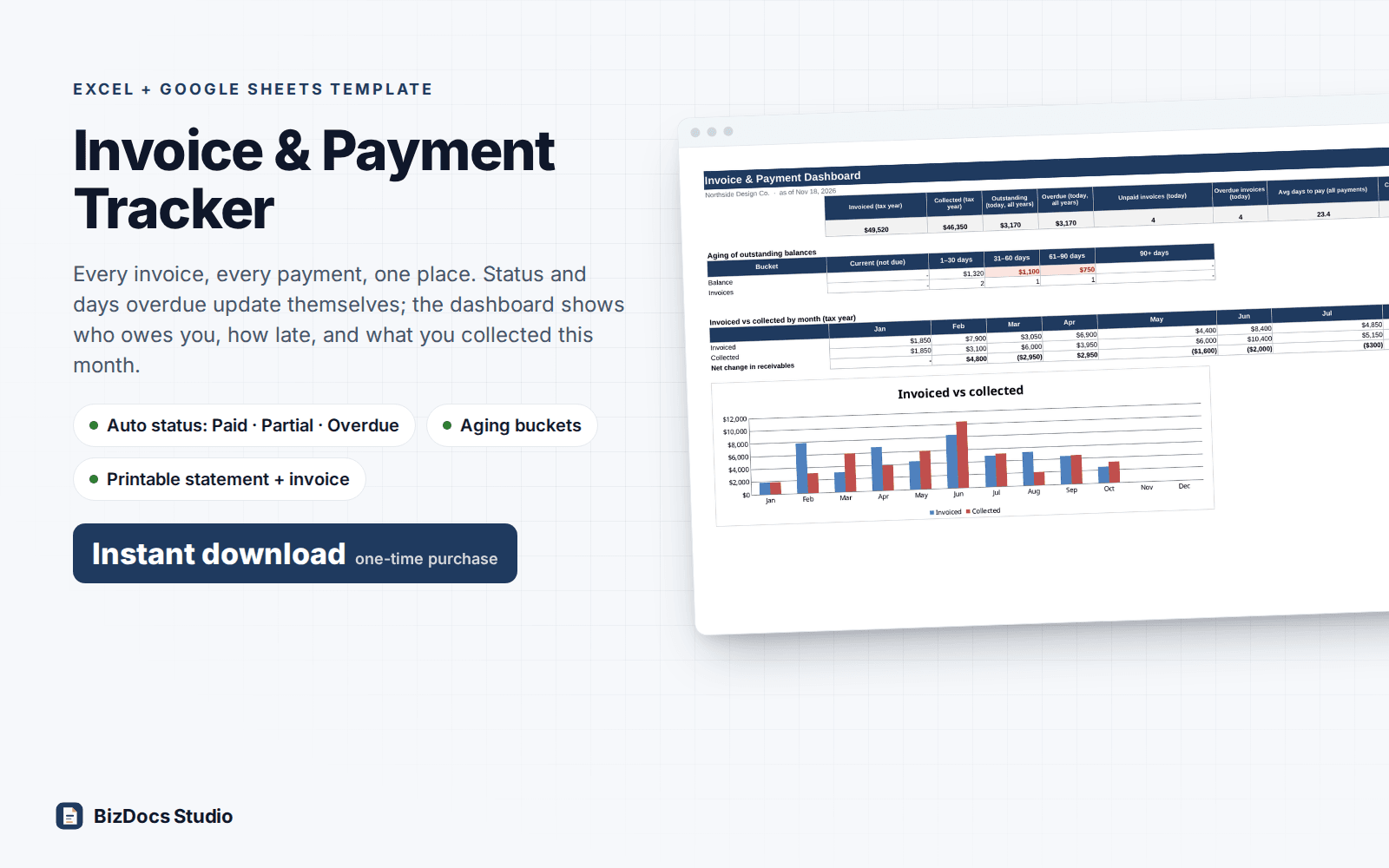
An invoice tracker for small businesses that send their own invoices. Each invoice gets a due date, status and balance; payments can be partial; the chase list ranks overdue invoices by days late; and the aging report and client statements are one click away. Excel and Google Sheets, no subscription.
- 1
Settings
Business name, address, phone and email for printed documents. Default payment terms (30 days in the sample), late fee per month (1.5%, quoted on statements only), default tax rate, tax year and payment instructions. A client list with room for 30 clients, each with contact email, own terms in days (left blank, the default applies) and notes. Seven payment methods for the Payments dropdown, plus three blank slots for your own.
- 2
Invoices
300 rows: invoice number, client from a dropdown, invoice date, description, pre-tax amount, tax and notes. Due date adds the client's terms, or your default. Total, paid (summed from Payments), balance, status and days overdue calculate. Status reads Paid (green), Overdue (red), Partial (amber), Open, No amount for a row whose amount is not typed yet, or No date for a row with no invoice date. Filters on every column, running totals for invoiced, paid, outstanding, overdue and overpaid credit at the top of the tab, and a Rows to check counter that turns red when a row needs fixing (the checks themselves are listed on the Dashboard). A repeated invoice number gets its payments on its first row only. Rows marked No amount or No date, or with no invoice number, stay out of every invoice total until you complete them.
- 3
Payments
500 rows: date received, invoice number from a dropdown of your invoices, amount, method and a reference such as a check number. The client name fills in from the invoice, and days to pay counts from invoice date to payment date. Two payments against one invoice number simply add up. A payment whose invoice number is blank or matches no invoice still counts as collected and shows on its own line in the Dashboard's Data checks. A payment dated before its invoice shows a negative day count and is left out of the averages. A payment with no date, or against an invoice with no invoice date, gets no day count.
- 4
Dashboard
Eight KPIs: invoiced, collected and collection rate for the tax year; outstanding, overdue, unpaid invoices and overdue invoices as of today across all years; and average days to pay across all payments. An aging table with balance and invoice count in five buckets by due date. A month-by-month table of invoiced, collected and net change in receivables for the tax year, with a bar chart. Lower down, the 10 most overdue invoices ranked by days late, each with client, due date, balance and the contact email from Settings. Beside it, one row per client, up to 30, with outstanding balance, overdue amount, invoiced this tax year and average days to pay. Overdue amounts show in red. To the right of the printed page, a Data checks list counts rows with no amount, no invoice date, a blank or unlisted client, a blank or repeated invoice number, payments with no date, no amount or a blank or unknown invoice number, clients listed twice in Settings, and rows inserted without formulas or above the first row; under it, the tax year's collected amount is split into payments on complete invoices, on rows left out of the totals and with a blank or unknown invoice number, so it matches the Collected KPI to the cent.
- 5
Statement
Pick a client and up to 12 unpaid invoices list themselves with description, invoice date, due date, total and balance. Total due and the overdue portion underneath cover every unpaid invoice for that client; if more than 12 are unpaid, a line says how many are not listed and the amount is included. Then your payment instructions and a line quoting your monthly late fee (left out when the late fee is blank). Dated today and set to print on one page.
- 6
Invoice
A printable invoice: your header, invoice number and date, client from a dropdown, due date and Net terms taken from that client's setting or your default. Six line rows with quantity and rate, subtotal, tax at your default rate and total due, plus payment instructions. The sample matches its row in the Invoices log. A note under the invoice, which does not print, reminds you to log new invoices on the Invoices tab.
What you can count on
- Status and days overdue update themselves from payments, measured against today's date each time the file opens
- Partial payments handled: any number of payment rows per invoice, with the remaining balance shown
- Aging buckets by due date: current, 1-30, 31-60, 61-90, 90+ days, in dollars and invoice count
- Chase list of the 10 most overdue invoices, ranked by days late, with the client's email next to each
- Per-client terms (Net 15 / 30 / 45 in the sample) drive due dates; a blank terms cell falls back to your default
- Printable statement and invoice that match your Settings: name, address, terms and payment instructions
- An invoice logged before its amount is known shows No amount and leaves every invoice total intact
- Sample design studio year: 6 clients, 27 invoices worth $49,520, 25 payments worth $46,350, a 93.6% collection rate
- 4,000+ formulas, all visible and editable, nothing protected; sample totals verified to the cent
Last updated November 20, 2026. Buyers get updates to this version free, by email.
Before you buy
Does it work in Google Sheets?
Yes. File > Import > Upload the .xlsx. Dropdowns, conditional formatting and the chart carry over. All formulas are Sheets-compatible; no macros. Status, days overdue and aging use TODAY(), so they move forward each day you open the file. It was tested in Google Sheets after import.
How does status work?
Each invoice sums its payments. Balance zero = Paid. Balance with the due date passed = Overdue. Some payment but not all = Partial. Otherwise Open. Days overdue counts from the due date. Overdue comes first, so a part-paid invoice past its due date shows Overdue. A row with an invoice number but no amount yet shows No amount, and one with no invoice date shows No date; both are left out of every invoice total until you complete them. A payment recorded against such a row still counts as Collected on the Dashboard and shows on its own line in the Dashboard's Data checks.
Can I set different terms per client?
Yes. Each client in Settings has its own terms in days; the invoice due date uses it. A client whose terms cell is blank, or a name not on the list, uses your default. The printable Invoice tab reads the same setting and prints it as Net terms, for example Net 30 days.
Does it handle tax?
There is a tax column per invoice and a default tax rate for the printable invoice. Set the default to 0 if you do not charge tax. On the Invoices tab you type the tax amount in dollars; the file does not decide what is taxable or which rate applies.
What if it is not what I need?
Email us within 14 days and we refund you. No forms, no questions.
How much does it hold?
300 invoices, 500 payments and 30 clients per file, 12 unpaid invoices listed per statement (the total due still covers all of them) and 10 lines on the chase list. The Dashboard's tax-year figures follow the tax year in Settings; outstanding and overdue figures are as of today. For a new year, change the tax year or start a fresh copy and carry over unpaid invoices.
How is average days to pay calculated?
Each payment row subtracts the invoice date from the payment date, and the Dashboard averages those results, overall and per client. A payment dated before its invoice gives a negative count and is left out of both averages; a payment row with no date gets no count and is counted in the Dashboard's Data checks, and a payment against an invoice with no invoice date gets no count either. In the sample the overall average is 23.4 days, from 13.9 for the client on 15-day terms with a monthly retainer to 46.7 for the client on 45-day terms.
Is the late fee added automatically?
No. The late fee % from Settings appears only as a sentence on the Statement, and no formula adds it to any balance. Charge it only where your contract and state law allow. The sample rate is 1.5% per month.
Does it send reminders or sync with my bank or QuickBooks?
No. It sends nothing and has no bank feed or accounting sync; you type or paste payments in. Use the chase list to see whom to contact and print the Statement to PDF to attach to your own email.
Learn before you fill it in
- How to track invoices in Excel or Google Sheets and get paid faster
How to track invoices in a spreadsheet: columns to include, statuses, partial payments, days overdue, aging buckets and a chase list. Excel and Google Sheets.
- How to bill construction work: deposits, progress billing and retainage
How to invoice a construction job: deposit and final invoices, schedule of values, % complete, stored materials, retainage and payment terms, with examples.
More templates for small business
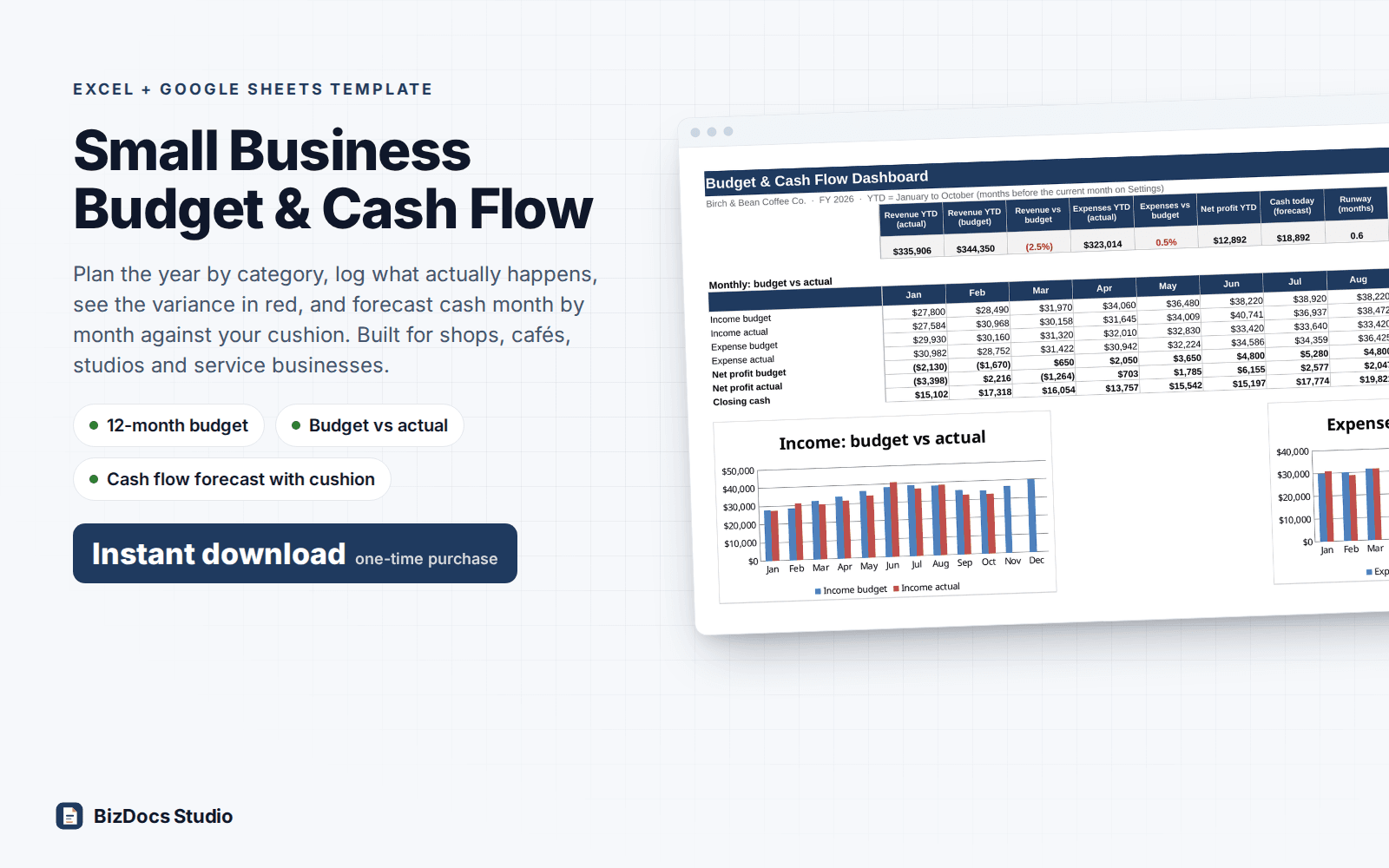
Small Business Budget & Cash Flow
A 12-month budget with actuals beside it and a cash flow that shows which month runs short.
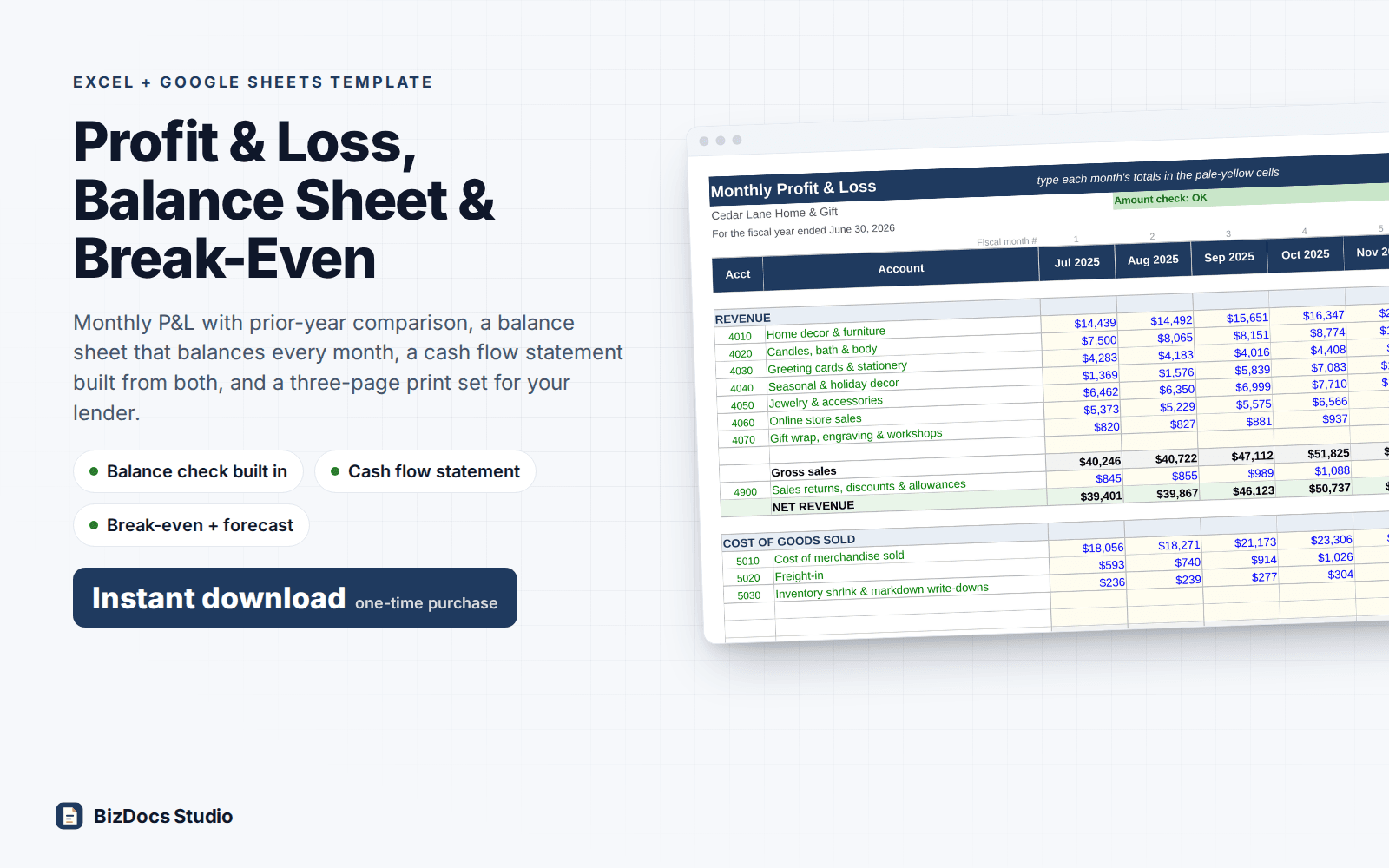
Profit & Loss, Balance Sheet & Break-Even Templates
Monthly P&L, a balance sheet that balances, cash flow, ratios and break-even in one file.
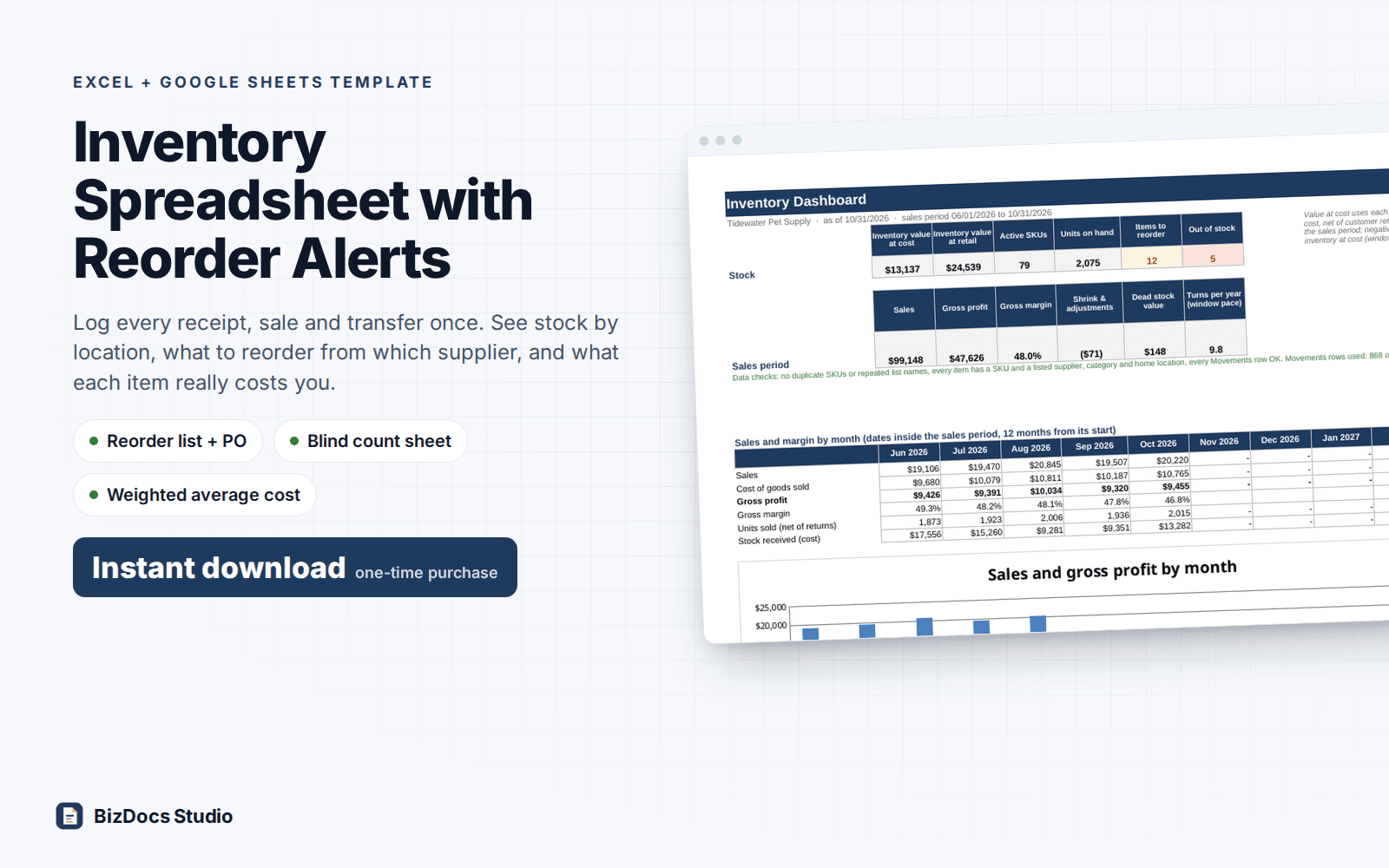
Small Business Inventory Spreadsheet with Reorder Alerts
Stock on hand by location, reorder alerts by supplier, a printable purchase order and a count sheet for small product businesses.
Invoice & Payment Tracker
$7 one-time · instant download · 14-day refund